Instagram Data Export Not Working? Fixes for Missing Notices and Broken ZIPs
Last reviewed:
Reviewed by / developer: TrackFollows
Exporting your Instagram data takes several steps, and it is easy to get stuck somewhere in the middle. Looking at the questions we receive and our anonymous analysis-failure diagnostics, most problems come down to a handful of causes. Work through the sections below based on the step where you got stuck. The basic export process is covered separately in how to download your Instagram data.
Find your symptom
| Symptom | Check first |
|---|---|
| No notice | Status on the export screen; can take up to 30 days |
| Download gone | 4-day window passed → request again |
| Damaged ZIP | Default browser; download completed |
| No followers file | "Followers and following" selected; correct profile |
| Structure error | Use the original file; re-export as JSON |
Step 1: The "export ready" notice never arrives
It may simply not be ready yet
Instagram prepares the export and the time varies. The Instagram Help Center says the ready notice can take up to 30 days. Exports limited to followers and following usually finish sooner, but no timing is guaranteed. Instagram Help Center
Check the export screen instead of waiting for a notice
Push notifications and emails are easy to miss. Go to Accounts Center → Your information and permissions → Export your information and look for your request under Current activity or Available downloads. If it says "in progress", keep waiting. If nothing is listed, the request was probably never created, and starting a new one is faster.
Do not create the same request over and over
Starting new requests while one is still in progress makes it hard to tell which file is the latest. Wait for one to finish, then request again if you need to.
Step 2: The download fails or disappears
- Download window: a ready file can be downloaded for only 4 days, according to the Help Center. After that it disappears from the list and you need to request a new export.
- Password check: you may be asked to re-enter your password before downloading. Only enter it on an Instagram or Meta domain.
- In-app browsers: opening links inside messaging apps (KakaoTalk, Instagram DMs, and similar) can break saving or selecting files. Open the site directly in a regular browser such as Chrome, Safari, or Samsung Internet and try again.
Step 3: The ZIP will not open or is reported as damaged
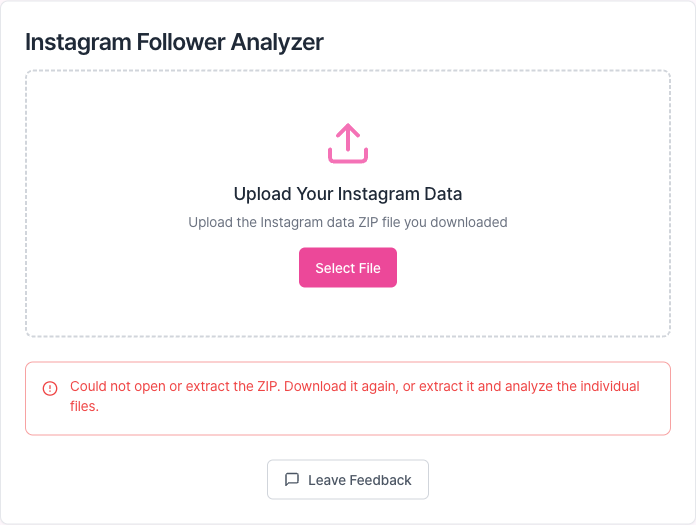
What you see when selecting a deliberately damaged sample ZIP.
Check your default browser on Android
On Android, ZIP files have been saved in a corrupted state when the Naver app was set as the default browser. Go to Settings → Default apps → Browser app, switch to Chrome or Samsung Internet, and download again. Device-specific screenshots are in the Android browser guide.
Make sure the download actually finished
If the file is 0 bytes or unusually small, the download was interrupted. A name ending in .crdownload or .download instead of .zip also means it is still saving. Download again on a stable connection.
Do not extract and re-zip
The TrackFollows home page reads the ZIP exactly as Instagram created it. If you extract it and compress only some files again, the folder structure changes and the followers file may not be found. If you already extracted it, selecting the followers and following files separately in individual file analysis is more reliable.
Step 4: "Followers file not found"
This message appears when the ZIP has no followers list such as followers_1.json or followers_1.html. Common causes:
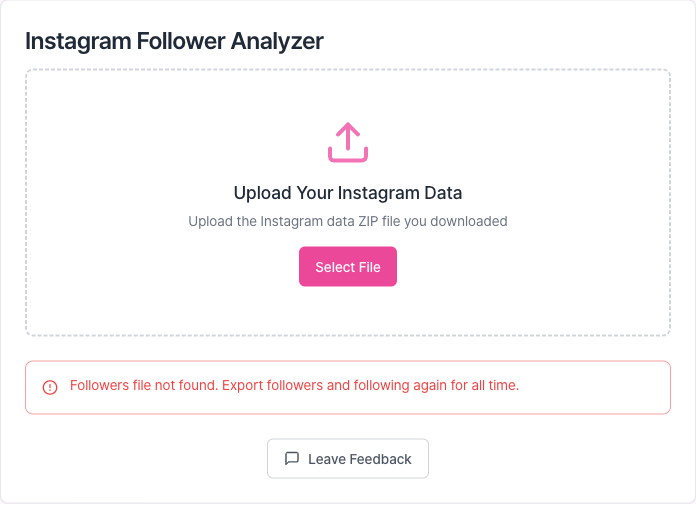
What you see when selecting a sample ZIP with the followers file removed.
- "Followers and following" was not selected under Customize information. If you chose other categories only, the file is not included.
- You exported a different profile. If several profiles are linked in Accounts Center, confirm you picked the one you want to analyze.
- Only Threads files are present. The same export can include Threads follower files, which TrackFollows does not treat as Instagram lists.
A missing following file (following.json) has the same causes. Both files are needed for a comparison, so export again with "Followers and following" selected.
Step 5: "Unsupported data structure"
If a file was opened and saved in a text editor, or converted by another app, its structure may have changed. Select the original file from Instagram without editing it. If an HTML file cannot be read, exporting again in JSON format is the most reliable fix; the JSON vs HTML comparison explains why.
If none of this works
- These suggestions are based on cases TrackFollows has seen. They cannot fix outages on Instagram's side or account-specific restrictions. If the export option is missing or errors keep repeating, contact the Instagram Help Center.
- Messages that ask for your password or a login code to "fix" a problem may be phishing. Instagram: Protect yourself from phishing
- Numbers that differ from the app are not necessarily an error. See how to read your results.
If you are still stuck, compare your screens with the examples on the guide page or reach us through the contact email at the bottom of the site.
Sources