How to Delete Instagram Reposts
Last reviewed:
Reviewed by / developer: TrackFollows
This guide covers removing a repost you shared. It does not delete the original creator's post or reposts shared by other people. When Meta introduced reposts as a standard feature in August 2025, it described them as shares of public posts and reels, credited to the original creator, shown to your followers' feeds and collected in a separate tab on your profile. Meta's official announcement
Where a repost lives
| Place | When you repost | When you delete the repost |
|---|---|---|
| Your followers' Feed and Reels | Shown with the creator's name | No longer shown |
| The Reposts tab on your profile | Added to the list | Removed from the list |
| The original post | Unchanged; the creator may get a repost notification | Unchanged |
| A note you added | Shown with the repost | Removed with the repost |
A repost is a pointer to the original, not a copy. If the creator deletes the original or makes the account private, your repost disappears too. Deleting your repost changes nothing on the original.
Method 1: Remove it from the post
① Confirm it is your repost
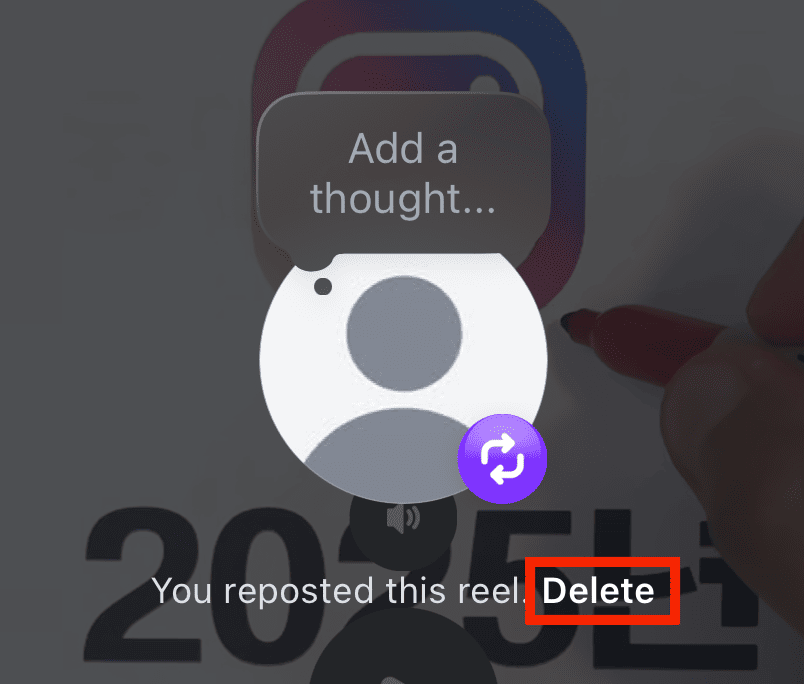
In Feed or Reels, this message marks a post you reposted:
"You reposted this reel. Reposting lets you share other people's posts with your followers in Feed."

② Tap the active repost button
The repost button at the bottom right of the post shows a check mark when active. Tap it again.
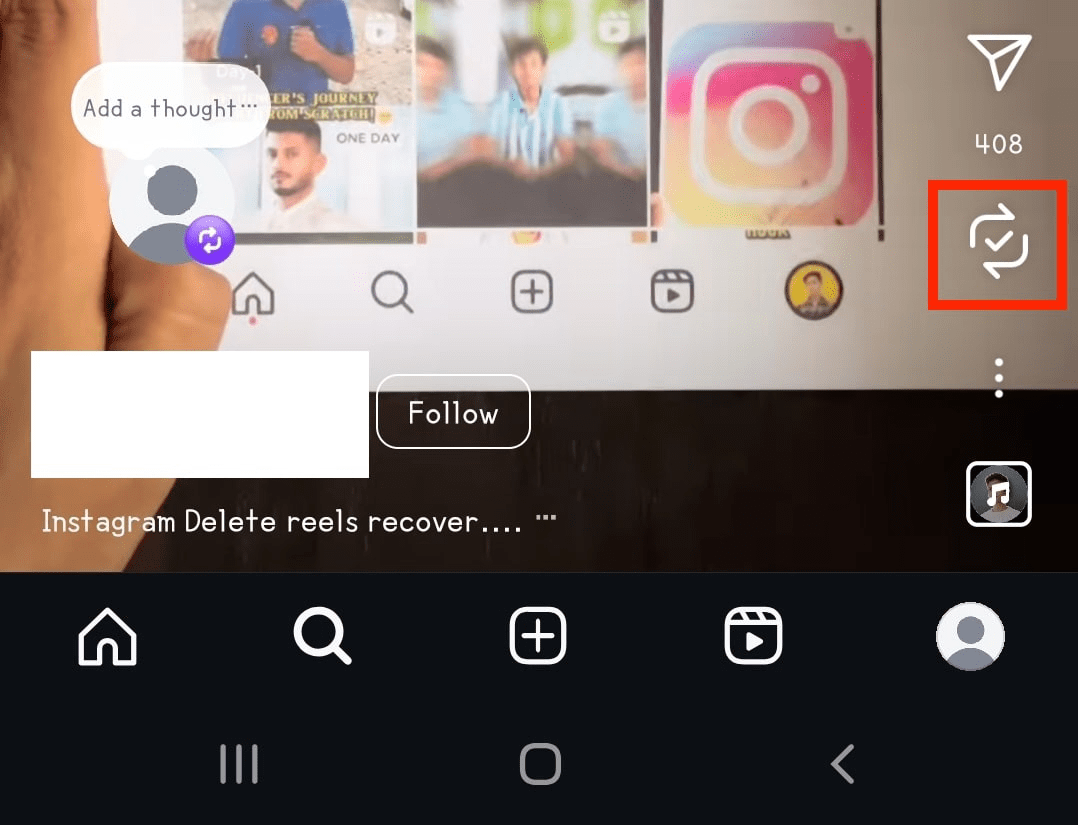
③ Choose Delete
A Delete button appears under "You reposted this reel." Tapping it removes the repost and takes it off the Reposts tab on your profile.
Method 2: Remove it from the Reposts tab on your profile
If you do not remember which post you reposted, your profile is the quickest place to look.
- Open your profile and choose the Reposts tab next to the posts and reels tabs.
- Open the repost and tap the ⋯ menu at the top right.
- Choose Delete repost (some app versions say "Remove from profile").
Method 3: Delete several at once from settings
With many reposts, use Your activity to select and delete them together.
☰ at the top right of your profile → Your activity → Reposts → Select → Delete

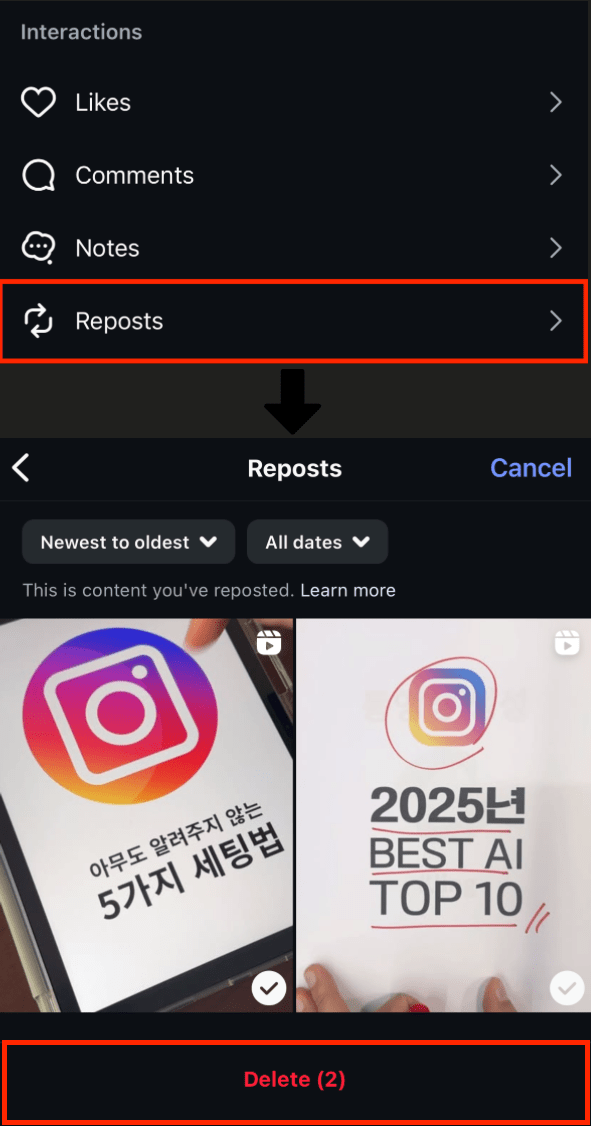
Your activity is also where likes, comments and saved posts can be cleaned up the same way. If the Reposts entry is missing, update the app and check again.
Before you delete
- It does not recall what people already saw. Anyone who saw the repost in their feed while it was up, or took a screenshot, is unaffected.
- Notifications cannot be undone. If the creator was notified of the repost, deleting it does not guarantee that notification disappears. Meta's announcement does not say what happens to notifications on deletion.
- You can repost again. If the original is still public you can share it again, but a note you wrote earlier is not restored.
- Menu names and positions vary by account and app version. If a path here does not match, start from the active repost button on the original post.
How a repost differs from other ways of sharing
| Sharing method | Where it shows up | How to undo it |
|---|---|---|
| Repost | Followers' Feed and Reels, and the Reposts tab on your profile | Any of the three methods above |
| Share to your story | Your story, for 24 hours | Delete it from your story |
| Send in a DM | The recipient's inbox | Unsend the message |
Story shares and DMs never appear in the Reposts tab, so clearing that tab doesn't remove a post you shared to your story. Delete those separately.
Frequently asked questions
Can I hide the Reposts tab itself? Deleting every repost leaves the tab empty. Meta's guidance does not describe a setting that makes the tab private.
A post I reposted vanished. If the creator deleted the post or went private, the repost disappears with it. You did not delete it.
Do reposts affect my follower count? Not directly. To check follower relationships, export your lists with the data download guide and compare them.
Related guides