How to Reset Instagram Explore Algorithm
Last reviewed:
Reviewed by / developer: TrackFollows
Instagram’s recommendation reset applies to Explore, Reels and Feed. It restarts suggested content; it does not reset your account or promise a particular result. Meta’s official announcement
📌 Steps to Reset Algorithm
① Check Explore Tab
First, check the Explore tab in the Instagram app. If you're not satisfied with the current recommendations, you might need to reset the algorithm.

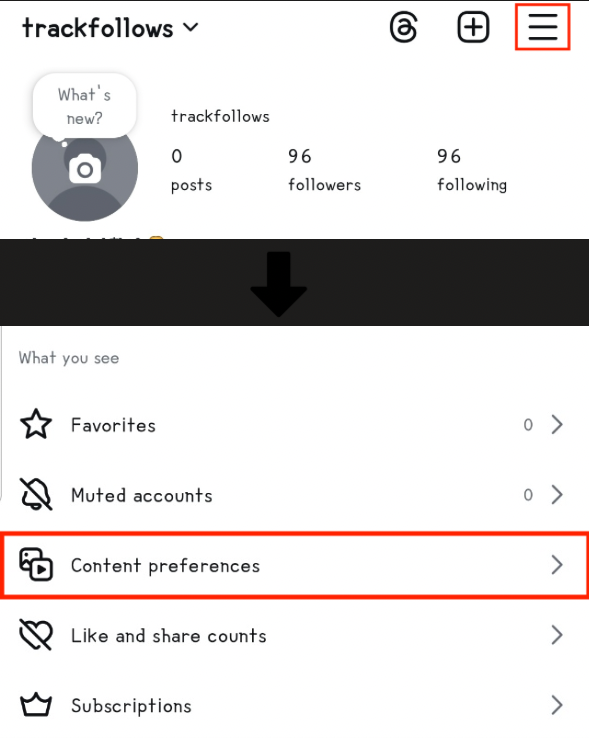
② Access Profile Menu
Open your profile, tap the menu (≡), then select Content preferences. The exact label can vary with the app language and version.
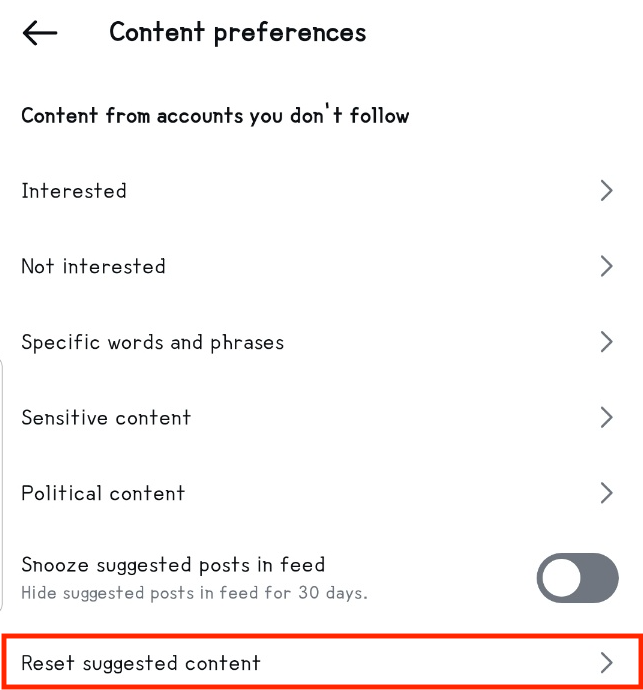
③ Select Reset Recommended Content
In the 'Content Preferences' screen, find and select the 'Reset Recommended Content' option.
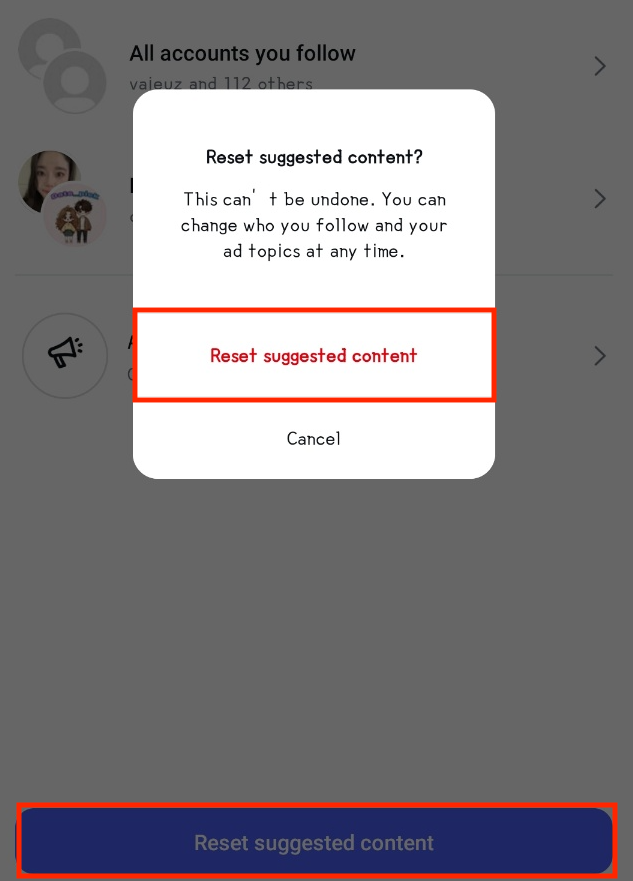
④ Confirm Reset
Finally, when you see the message 'Would you like to reset recommended content?', tap the 'Reset Recommended Content' button to complete the reset.
⚠️ Important Notes
- Recommendations personalize again over time based on the content and accounts you interact with.
- Read the confirmation screen before resetting. If the option is missing, check your app version; this guide cannot establish availability for every account.
- For a specific unwanted post, try “Not interested” first. A reset does not guarantee that a topic will never appear again.
Related articles